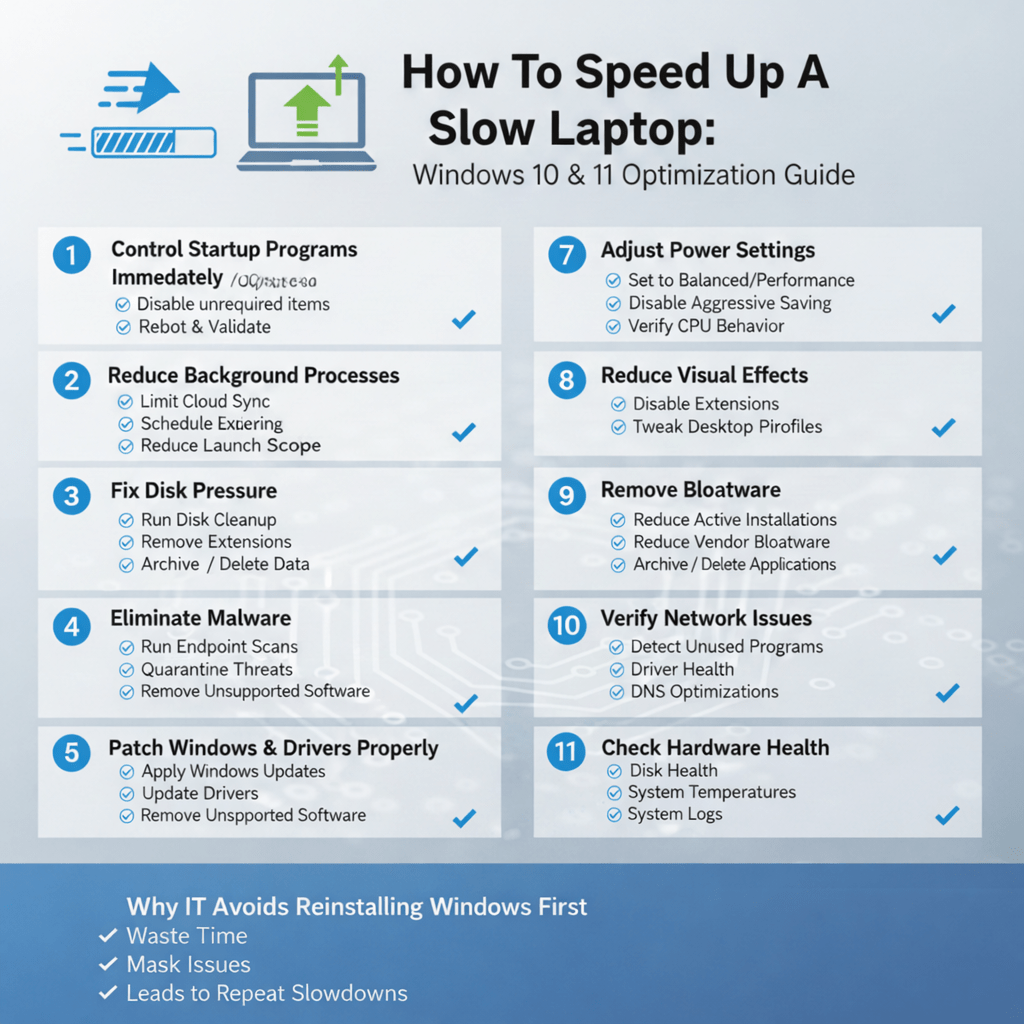
A slow Windows laptop is rarely a hardware failure. In most cases, performance drops because Windows environments accumulate background load, security overhead, sync conflicts, and configuration drift over time. Windows 10 and 11 are powerful operating systems, but they require discipline to stay fast.
At Mindcore Technologies, we optimize Windows laptops daily for executives, clinicians, and remote teams who cannot afford lag. These are the same steps our engineers use before recommending any hardware replacement.
Start With Reality: Why Windows Laptops Slow Down
Windows systems slow down due to:
- Excessive startup programs
- Background sync and indexing
- Browser overload
- Security tool misconfiguration
- Low disk space
- Malware or infostealers
- Power throttling
- Poor patch hygiene
If you do not address these root causes, performance will continue to degrade regardless of hardware.
1. Control Startup Programs Immediately
Startup overload is the fastest way to kill performance.
What we see most often:
- Vendor utilities
- Auto updaters
- Collaboration tools launching multiple services
- Legacy software never removed
What IT does:
- Open Task Manager and review Startup
- Disable anything not required for security or core work
- Reboot and validate improvement
This alone often delivers noticeable gains.
2. Reduce Background Processes That Compete for Resources
Windows allows many services to run quietly.
Common offenders:
- Cloud sync tools stuck in loops
- Backup agents running during work hours
- Indexing services scanning large folders
Optimization steps:
- Limit OneDrive or SharePoint sync scope
- Schedule backups after hours
- Reduce indexing to essential locations
Less contention equals faster response.
3. Fix Disk Pressure Before Anything Else
Storage issues cripple Windows performance.
Red flags:
- Disk usage above 85 percent
- Slow file access
- Freezing during saves
IT actions:
- Run Disk Cleanup
- Clear temp files
- Archive or delete unused data
- Review large Outlook data files
Windows relies heavily on disk operations. Free space matters.
4. Eliminate Malware and Infostealers
Slow laptops are often compromised laptops.
Modern threats:
- Avoid obvious alerts
- Consume CPU quietly
- Steal credentials
- Persist across reboots
What professionals do:
- Run EDR or advanced endpoint scans
- Remove suspicious browser extensions
- Investigate unusual outbound traffic
At Mindcore, many performance tickets uncover early-stage infections.
5. Optimize the Browser Before Blaming Windows
Browsers are the number one resource drain.
Problems include:
- Excessive open tabs
- Poorly written extensions
- Corrupt user profiles
Optimization steps:
- Remove unnecessary extensions
- Limit persistent tabs
- Reset or rebuild browser profiles when needed
A broken browser can make Windows feel unusable.
6. Patch Windows and Drivers Properly
Unpatched systems behave unpredictably.
Issues we see:
- Driver conflicts
- Inefficient background services
- Missed performance improvements
IT approach:
- Apply Windows updates consistently
- Update chipset, graphics, and network drivers
- Remove unsupported software
Performance and security improvements often come together.
7. Adjust Power and Performance Settings
Many Windows laptops are permanently throttled.
Symptoms:
- Sluggish multitasking
- CPU capped even while plugged in
Fix:
- Set power mode to Balanced or Best Performance
- Disable aggressive power saving profiles
- Verify CPU behavior under load
This is one of the most overlooked optimizations.
8. Reduce Visual Effects That Add No Business Value
Windows animations consume resources.
What we change:
- Disable unnecessary animations
- Reduce transparency effects
- Prioritize performance over appearance
Small changes add up, especially on older systems.
9. Remove Bloatware and Unused Applications
Pre installed software and unused apps drain performance.
Cleanup steps:
- Uninstall unused programs
- Remove vendor bloatware
- Standardize approved applications
Lean systems run faster and break less often.
10. Verify Network Issues Are Not the Real Problem
Many users blame Windows when the network is the issue.
Symptoms:
- Cloud apps lag
- Web tools feel slow
- Video calls freeze
What IT checks:
- Wired versus Wi Fi performance
- Driver health
- Network congestion
A healthy laptop still feels slow on a bad network.
11. Check Hardware Health Before Replacing Anything
Hardware does fail, but not as often as assumed.
IT validates:
- Disk health
- Memory errors
- Thermal throttling
- System logs
Only after validation do we recommend upgrades.
Why IT Avoids Reinstalling Windows First
Reinstalling Windows without fixing root causes:
- Wastes time
- Masks deeper issues
- Leads to repeat slowdowns
Optimization always comes before reinstallation or replacement.
How Mindcore Technologies Keeps Windows Laptops Fast
Mindcore helps organizations maintain fast, stable Windows environments through:
- Proactive endpoint monitoring
- Malware and infostealer detection
- Patch and driver management
- Browser and application optimization
- Power and performance tuning
- Network performance analysis
- Standardized Windows configurations
Speed is maintained, not recovered repeatedly.
Final Takeaway
Windows 10 and 11 laptops slow down because of accumulation, not age. When startup behavior is controlled, storage pressure is reduced, security threats are removed, and configurations are tuned, performance returns without new hardware costs.
Fast laptops are the result of disciplined optimization, not constant replacement.
Frequently Asked Questions
How can you speed up a slow Windows 10 or 11 laptop?
Disable unnecessary startup programs, uninstall unused applications, clear temporary files, optimize browser usage, update drivers, and perform disk cleanup and defragmentation. These steps improve performance without replacing hardware Managed IT Services.
Why should you manage startup programs?
Startup programs consume CPU and memory at boot, slowing down the system. Disabling nonessential startup apps frees resources and allows faster startup and better performance throughout the day Safe Computer Optimization.
How does browser optimization affect laptop speed?
Browsers can significantly affect performance due to cached files, multiple open tabs, and extensions. Cleaning the browser, disabling unneeded add-ons, and limiting tabs improves speed and responsiveness Managed IT Services.
What role does malware protection play in performance?
Malware, adware, and infostealers can degrade system performance by consuming resources or generating network traffic. Regular scans and updated endpoint protection maintain speed and security Cybersecurity Services.
When is hardware replacement necessary instead of optimization?
Hardware replacement is necessary if the laptop cannot meet performance requirements after safe optimization. Upgrading RAM, switching to SSD, or updating the CPU may be needed for modern applications Cloud & Infrastructure Management.
Matt Rosenthal’s Expertise in Laptop Optimization
Matt Rosenthal, CEO of Mindcore Technologies, brings decades of IT, cybersecurity, cloud, and endpoint management experience. He helps organizations improve Windows 10 and 11 performance through safe startup management, browser tuning, malware protection, driver updates, and disk optimization. Under his leadership, businesses maintain fast, stable, and secure laptops for employees while extending hardware lifespan and reducing operational disruptions Cloud & Infrastructure Management.